Smartsheet vs Jira and How to Integrate Them for Your Team
By
Samara Garcia
•

As organizations scale across engineering, operations, and business teams, it is increasingly common for different departments to rely on different work management platforms. In many companies, Jira powers agile software development and issue tracking, while Smartsheet supports portfolio management, executive reporting, and cross-functional planning. Rather than replacing one tool with the other, many teams now focus on integrating both platforms to create a unified workflow across technical and non-technical stakeholders.
This guide explores the core differences between Smartsheet and Jira, where each platform performs best, and how organizations can connect them effectively. You will learn how teams use Smartsheet for reporting and portfolio visibility while keeping Jira as the system of record for engineering execution, along with the most common integration methods, best practices, and challenges to consider when syncing data between the two platforms.
Key Takeaways
Smartsheet excels at flexible work management, portfolio views, and reporting for project managers and business teams handling operations, marketing, and PMO functions.
Jira is optimized for software delivery, issue tracking, and agile workflows across Jira Cloud and the sunsetting Jira Data Center.
Many organizations use both tools together, syncing Jira data into Smartsheet for status reporting across multiple Jira projects.
Teams can connect Smartsheet and Jira through the native Smartsheet Jira Connector or third-party integration and automation tools like Zapier and Unito.
Integration enables unified reporting that reduces manual data transfers and provides instant visibility across engineering and business operations.
Smartsheet vs Jira: Core Differences in How Teams Use Them
Smartsheet and Jira are not direct replacements but complementary work management platforms designed for different users and workflows. Smartsheet is a flexible, spreadsheet-based work management platform ideal for operations, portfolio management, and non-technical teams. It allows for complex formulas and conditional formatting with high cell-level control, making it suitable for a wide range of industries and project types beyond just software.
Jira is an issue-tracking and project management tool designed specifically for software development and Agile teams. It provides full traceability from a concept or epic down to the specific line of code or version release. Jira offers a free plan for teams with up to 10 users, making it accessible for smaller engineering groups.
The underlying data architecture differs significantly. Jira utilizes the Teamwork Graph, which models work as interconnected issues, epics, and sprints with deep ties to developer tools. Smartsheet utilizes the Intelligent Work Graph, emphasizing dynamic data relationships across sheets, forms, and dashboards for portfolio-level aggregation.
Both platforms now support automation rules and integrations, but their strengths still reflect these original design goals. Some fast-growing startups use talent marketplaces like Fonzi to bring in engineers already experienced in both tools, reducing onboarding time.
Category | Smartsheet | Jira |
Primary Users | Project managers, PMOs, operations | Software engineers, agile teams |
Core Data Model | Sheets with rows, columns, formulas | Issues, epics, sprints, workflows |
Typical Use Cases | Portfolio dashboards, intake forms, resource planning | Bug tracking, sprint planning, code integration |
Reporting Strength | Roll-up dashboards, AI summaries | Burndown charts, velocity reports |
Smartsheet Capabilities and When It Makes Sense to Lead with Smartsheet
Smartsheet serves as a central hub for non-technical teams that still need structured project tracking with high-level view capabilities. The platform includes built-in Gantt charts, Kanban boards, and calendars, along with Grid, Card, Timeline, and Portfolio views that help visualize work coming from Jira and other sources.
Project managers and business stakeholders prefer Smartsheet for portfolio management, resource planning, and cross-team status reports. AI-powered reports and natural language formulas can roll up metrics across dozens of sheets, including live Jira data via integration. Smartsheet is excellent for tracking projects with multiple dependencies.
Specific examples include marketing launch calendars syncing with creative workflows, IT intake queues processing service requests, and operations roadmaps that pull data from multiple Jira projects. Users can visualize their work using various views such as Gantt View, Calendar View, and Card View, which enhance project tracking and management.
Jira Capabilities and When It Makes Sense to Lead with Jira
Jira, especially Jira Cloud and Jira Data Center, remains the standard for AI-driven software delivery tracking in 2026. Engineering teams rely on Scrum and Kanban boards, Atlassian Rovo AI agents for query assistance, advanced roadmaps, and customizable issue workflows for managing their software development projects.
Jira is best-in-class for managing bugs, issues, sprints, and code integration. It excels in Scrum and Kanban, offering native sprint planning, backlog grooming, and velocity reports. Jira provides specific reports crucial for developers, such as burndown charts, velocity tracking, and cycle time analysis. It integrates directly with tools like Bitbucket, GitHub, and CI/CD tools.
The differences between Jira Cloud and Jira Data Center matter for enterprise deployments. Jira Cloud offers scalable, cloud-based operations with OAuth authentication. Jira Data Center suits regulated industries (finance, healthcare) that keep Jira data on-premises behind strict firewalls. Note that legacy Jira Server reached end-of-support in February 2024, and Jira Data Center is now sunsetting, prompting many organizations to migrate.
Pure software teams that rarely need spreadsheet-style portfolio views can stay primarily in Jira. Even Jira-centric organizations often connect Smartsheet for leadership reports, budget tracking, and cross-functional planning. Evaluate where your source of truth should live and which teams need which tool.
Smartsheet vs Jira: Side-by-Side Comparison Table
This comparison table highlights key differences across criteria that matter most when evaluating these project management tools.
Category | Smartsheet | Jira |
Primary Audience | Project managers, business teams | Engineers, dev ops, agile teams |
Core Data Model | Sheets and rows with formulas | Issues, epics, sprints |
Typical Use Cases | Portfolios, intake, executive reporting | Agile execution, bug tracking |
Reporting | Custom dashboards, AI roll-ups | Burndown, velocity, cycle time |
Ease of Use (Non-Tech) | High (Excel-like interface) | Medium (learning curve for agile) |
Portfolio Handling | Native multi-sheet views | Advanced Roadmaps add-on |
Custom Fields | Column formulas, conditional formatting | Issue schemes, custom workflows |
Automation | Workflow alerts, approvals | Automation for Jira rules |
Hosting | SaaS only | Cloud, Data Center (sunsetting) |
Native Integration | Jira Connector (paid add-on) | Marketplace apps, REST API |
Smartsheet is suitable for a wide range of industries and project types beyond just software, while Jira maintains its strength in software projects with deep developer tool integrations.
Why Connect Smartsheet and Jira Instead of Choosing Only One
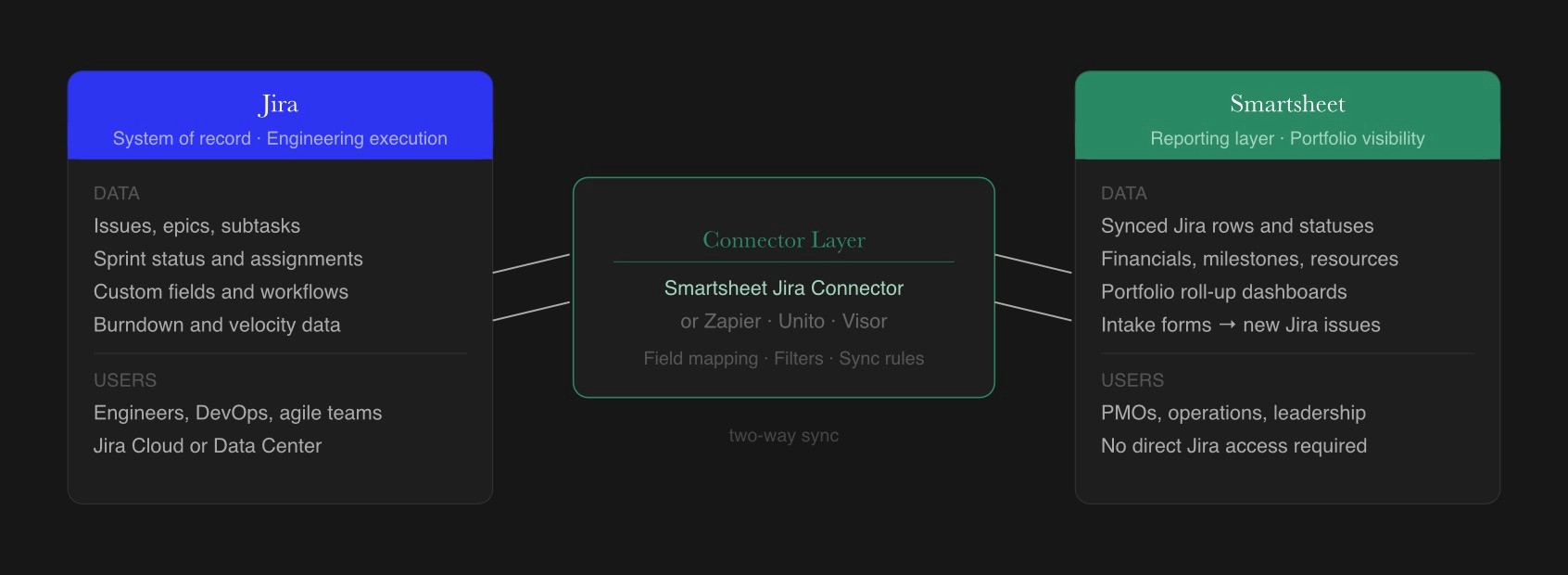
Many enterprises from 2020 to 2026 have standardized on Jira for engineering and Smartsheet for business operations instead of forcing a single tool across all teams. Many organizations use both Jira for developer issue tracking and Smartsheet for project scheduling and executive reporting.
Information silos emerge when engineering details stay only in Jira while leadership reporting lives in disconnected spreadsheets. A Jira Smartsheet integration allows Jira data to flow into Smartsheet, where PMOs can combine it with financials, milestones, and non-Jira tasks.
Benefits include unified reporting across multiple Jira projects, reduced manual copy-paste work, and fewer status meetings. Common patterns include using Smartsheet as an intake form for business requests that then create new Jira issues automatically through connector workflows.
The Smartsheet Jira Connector allows users to create intake forms in Smartsheet and automatically synchronize data back to Jira, facilitating easier collaboration between teams. The integration supports real-time updates, meaning changes made in either Jira or Smartsheet are reflected in the other tool almost immediately.
Options for Jira and Smartsheet Integration (Native and Third-Party)
Teams can integrate Jira and Smartsheet using the native Smartsheet Jira Connector or third-party automation tools, depending on their sync and workflow needs.
The native connector supports both Jira Cloud and Jira Data Center and allows one-way or two-way syncing between Jira issues and Smartsheet rows, including custom field mapping and workflow-based synchronization. It requires Smartsheet Business or Enterprise plans plus a paid connector add-on, with pricing typically handled through sales conversations rather than public listings.
Organizations using Jira Data Center behind corporate firewalls may also need networking and firewall adjustments to enable secure connector access.
Alternative integration approaches include:
Zapier: Can be used as an alternative to the Smartsheet Jira Connector, allowing users to set up automations between Smartsheet and various services, including Jira
Unito: Provides a no-code integration solution that allows for customizable two-way flows between Smartsheet and Jira, enabling real-time updates and field mappings
Visor: Offers a bi-directional sync between Jira data and spreadsheets, allowing users to filter and format various Jira data types such as Epics, Issues, Tasks, and Subtasks
Consider data volume, security requirements, and the number of Jira projects when choosing a connector or integration tool. Pilot an integration with a limited scope before deploying across the whole organization.
How to Integrate Smartsheet and Jira: Practical Setup Overview
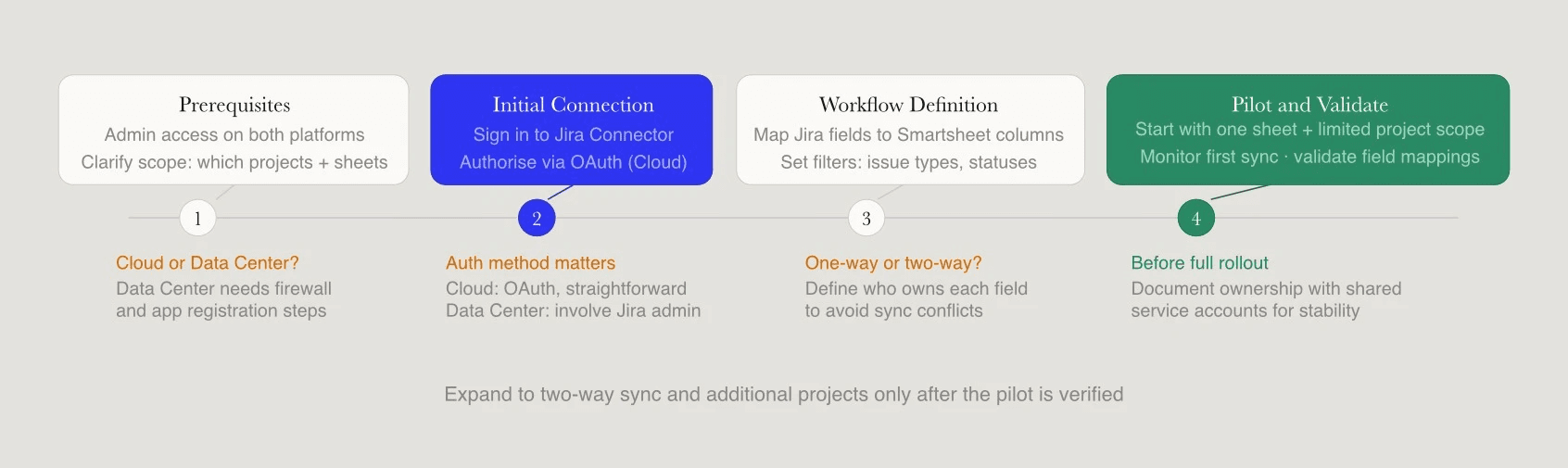
This section walks through the main steps to connect Smartsheet with Jira at a conceptual level, complementing vendor documentation rather than replacing it.
Prerequisites include active Smartsheet and Jira accounts with admin permissions, plus clarity on which Jira projects and Smartsheet sheets will participate in the sync. You will need a Jira account with appropriate access to register the application.
The initial connection step involves signing into the Jira connector and authorizing access to the relevant Jira instance. For Jira Cloud, the connection usually uses OAuth and is straightforward. Jira Data Center often requires coordination with Jira admins to register the application and adjust network rules.
Teams typically define workflows by mapping Jira issue types and fields (status, assignee, priority, custom fields) to Smartsheet columns. Integrations often support filters so that only specific Jira projects, issue types, or statuses sync into a given Smartsheet sheet, reducing noise.
Smartsheet provides an intuitive spreadsheet interface that allows users of any technical level to access and manage Jira data, with real-time synchronization of changes. The Smartsheet Jira Connector allows for a two-way sync between Jira and Smartsheet, enabling updates in one tool to reflect in the other automatically.
Best practices for setup include:
Start with a small pilot sheet and a limited Jira project scope
Validate field mappings before enabling full sync
Monitor the first sync cycle for errors or unexpected data
Document who owns each connection using shared service accounts for stability
Best Practices for Using Smartsheet and Jira Together Across Multiple Projects
Mature teams treat Jira as the execution layer for detailed task and subtask tracking, while Smartsheet serves as the planning and reporting layer across portfolios. This separation provides productivity gains and clearer workflows.
Set clear rules about which data fields are edited in Jira and which are edited on the Smartsheet side to avoid conflicts during bi-directional sync. Use standard field mappings and column naming conventions across all Smartsheet sheets that sync with Jira to simplify maintenance.
PMOs can build master portfolio sheets that roll up data from several Smartsheet sheets, each synced to separate Jira projects. Create Smartsheet dashboards that combine Jira data with financial KPIs, risk registers, and resource allocations for leadership reviews.
Align Jira workflows and statuses with how stakeholders expect to see progress summarized in Smartsheet. For example, map detailed Jira statuses to high-level stage columns that executives can quickly understand. This enables instant visibility into project health without requiring Jira access.
Governance matters. Use permission settings in both Jira and Smartsheet so that sensitive Jira data is only visible to appropriate users. Periodically review integration rules and performance, retiring unused connector workflows and updating mappings as schemas evolve.
Fonzi and Cross-Functional Engineering Teams
As more organizations integrate platforms like Smartsheet and Jira across engineering, operations, and business teams, companies increasingly need engineers who can work across both technical delivery and organizational workflows. Teams building AI products, internal platforms, and large-scale infrastructure often rely on Jira for software execution while using Smartsheet for portfolio planning, executive reporting, and cross-functional coordination. This creates growing demand for engineers and technical program leaders who understand agile systems, integrations, automation pipelines, and data synchronization across business-critical tools.
Fonzi helps connect experienced engineers, infrastructure specialists, and AI professionals with companies operating in these complex environments. Through curated matching and Match Day events that typically generate five to ten high-signal introductions per session, Fonzi gives candidates access to startups and engineering organizations looking for talent that can bridge software development, operations, and business workflows. For engineers experienced with Jira integrations, workflow automation, APIs, reporting systems, or enterprise tooling, this creates a more focused alternative to traditional job boards and mass-application recruiting.
Common Challenges with Jira Smartsheet Integration and How to Avoid Them
Integration projects sometimes fail due to unclear ownership, complex Jira schemas, or network constraints. Planning reduces these risks significantly.
Data-related issues include mismatched custom fields, changing Jira workflows, or inconsistent use of issue types across multiple Jira projects. Reduce these risks by standardizing Jira configurations before building connector workflows and documenting every mapping choice.
Technical constraints arise when Jira Data Center sits behind strict firewall settings that block outbound connections from the integration. Networking configuration is one of the most common sources of connector issues, particularly for Data Center deployments behind strict firewalls. Involve Jira admins, security teams, and Smartsheet admins early so that access, API tokens, and networking are properly configured.
Performance considerations include large volumes of Jira data, high sync frequency, and the trade-off between near real-time updates and system load. Recommendations:
Start with read-only or one-way sync for sensitive projects
Gradually expand to two-way sync once behavior is verified
Throttle sync frequency for large issue sets (hourly rather than every 15 minutes)
Train project managers and stakeholders on what is synced, where to edit, and how to fix errors
Summary
Smartsheet and Jira are designed for different types of work, which is why many organizations use both platforms together. Jira is optimized for agile software development, sprint planning, and issue tracking, while Smartsheet focuses on portfolio management, reporting, and cross-functional planning for operations and business teams. Rather than replacing one tool with the other, companies often combine them to create a shared workflow between technical and non-technical stakeholders.
In most organizations, Jira remains the system of record for engineering execution, while Smartsheet provides high-level visibility through dashboards, portfolio tracking, and executive reports. Syncing Jira data into Smartsheet helps reduce manual updates, improves collaboration across teams, and allows leadership to monitor progress across multiple projects without needing direct Jira access.
Teams can connect the platforms through the native Smartsheet Jira Connector or third-party tools like Zapier, Unito, and Visor. Successful integrations depend on clear ownership of synced fields, standardized workflows, and careful governance to avoid conflicts or reporting inconsistencies. When implemented correctly, the combination of Jira and Smartsheet creates a more unified workflow across engineering, operations, and business teams.
FAQ
What is the difference between Smartsheet and Jira, and when should I use each?
How do I integrate Smartsheet with Jira to sync data between them?
Is Smartsheet a good replacement for Jira for engineering teams?
What are the best Smartsheet and Jira integration tools and connectors?
How do teams use Smartsheet alongside Jira for project tracking and reporting?


